Review a design
This guide shows you how to review a model. A viewer can read the findings. You need the editor role to answer a finding with “won’t fix”, to save a snapshot and to ask the assistant. You need the owner role to settle a finding with a decision.
The review rules need no AI provider. They read the model, the scenarios, the schemas and the promises. The same model always gives the same findings and the same hash.
A finding says what the declared model shows. It is not evidence about a running system. See Findings are not proof.
Read the findings
Section titled “Read the findings”- Open the project and select Review in the left toolbar.
- Read the summary. It says how many findings block Build Ready.
- Read the list. The list shows concerns and unknowns first.
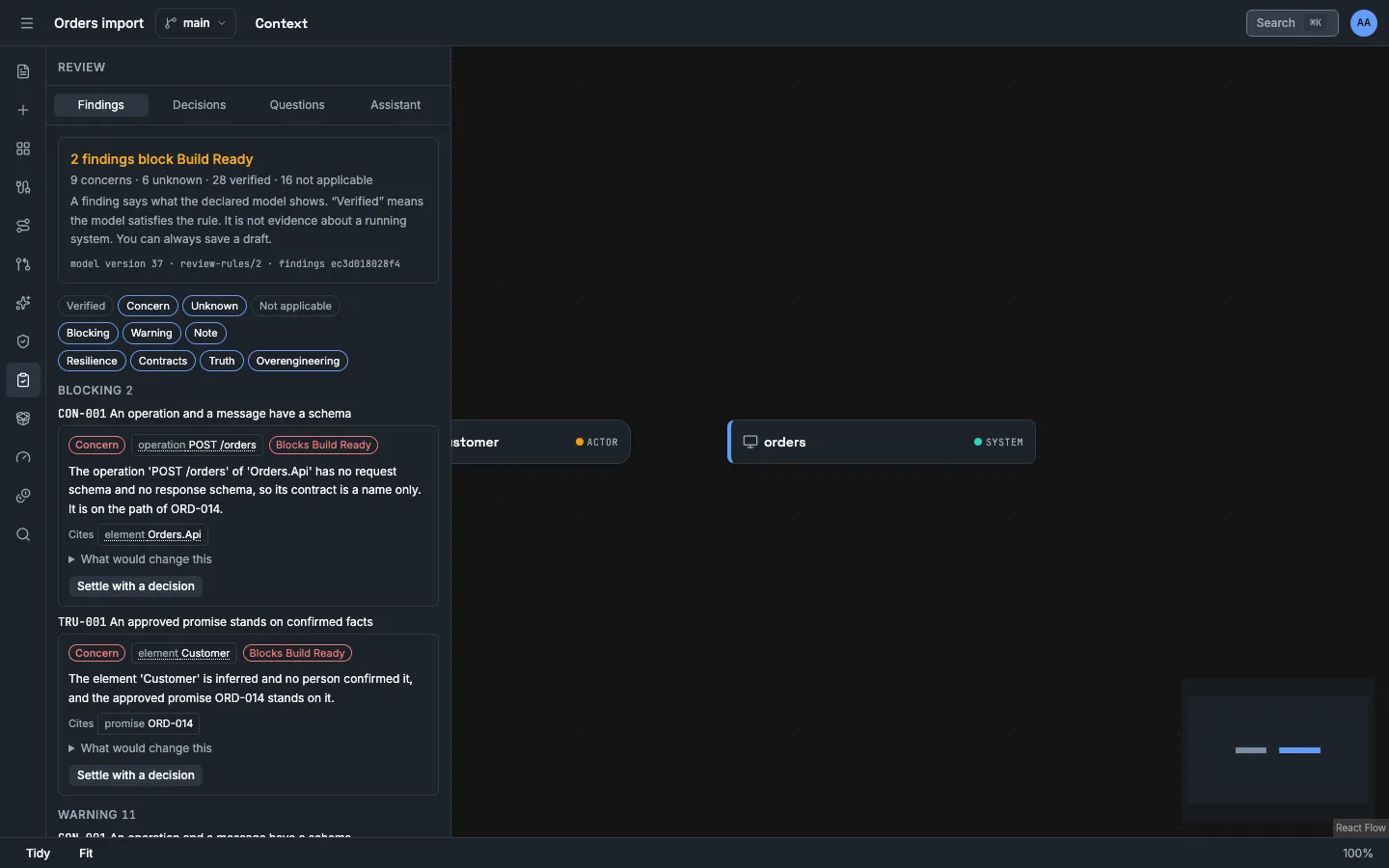
Each finding has one of four results:
| Result | Meaning |
|---|---|
| Verified | The declared model satisfies the rule. |
| Concern | The declared model does not satisfy the rule. |
| Unknown | The rule needs a fact that the model does not hold, or the fact is inferred, unknown or stale. |
| Not applicable | The rule does not read this part. |
Each finding names its rule, its subject and the parts it cites. Select a part to show it on the canvas. A contract is shown through the element that owns it.
Select What would change this to see which change of the model gives another result.
Use the filters to show verified and not-applicable results, or to show one severity or one category.
The tab shows the findings of the model that you have open: the main model, or a draft or a variant. The tab has no control to select a named revision. To read the findings of a revision, send GET /api/projects/{projectId}/review/findings with the query parameter revisionId. See Use the HTTP API.
The page Review rules describes each rule.
Understand what blocks Build Ready
Section titled “Understand what blocks Build Ready”A finding blocks Build Ready only when its severity is blocking and its result is concern. A rule gives the blocking severity only for a part on the path of an approved promise.
A blocking finding never stops you from saving. It adds a blocker review-<rule ID> to the Build manifest and to the SDD. The export still works.
Answer a finding
Section titled “Answer a finding”You have three answers:
- Change the model. The finding changes with the next read.
- Select Settle with a decision. Select an accepted decision, then select Settle. You need the owner role. Only this answer removes a blocker. See Record a decision.
- Select Won’t fix. Type a reason, then select Save. This answer is for warnings and notes. A blocking finding does not have this button, because this answer never settles a blocking finding.
Only a concern or an unknown has these buttons. A verified or not-applicable result has nothing to answer.
Only a person signed in to Vellum answers a finding. An agent token gets the status 403 and the type human_only.
A finding that you answered stays in the list. It shows its answer: Settled by with the number of the decision, or Won't fix with the reason.
When two persons answer one finding with “won’t fix” at the same time, the later answer stands.
Review an answer again
Section titled “Review an answer again”An answer records what the finding was. When the rule changes or the facts of the subject change, the finding shows Needs re-review. The answer then settles nothing.
- Read the finding again.
- When a decision settled the finding and the decision still holds, select the button Settle again with and the number of the decision, for example Settle again with ADR-0001. You need the owner role.
- When the answer was “won’t fix” and the reason still holds, select Review again, then select Save.
- Select Set open when the answer does not hold. You need the owner role to set open a finding that a decision settled.
Save a snapshot
Section titled “Save a snapshot”A snapshot keeps the findings of one model version, with their answers.
- Type a note. The note is optional.
- Select Save snapshot.
The list shows the model version and the hash of each snapshot. It says same findings when the hash is the hash of the findings now.
Select the note or the date of a snapshot to open it. The dialog has the title Stored snapshot. It shows the findings and their answers as they were saved. It shows the model version, the version of the rule set, the hash of the findings and the hash of the inputs. You cannot change a snapshot. A snapshot is a record. It is not the current state: read the Findings tab for that.
Select Delete on a snapshot to remove it. A project holds at most 200 snapshots. At the limit, Vellum refuses a new snapshot with the status 409 until you delete one.
Keep open questions
Section titled “Keep open questions”- Select the Questions tab.
- Below New question, type what the design leaves undecided.
- Select Add.
- To answer a question, select Answer, type the answer, then select Save the answer.
- To close a question with no answer, select Drop.
You answer or drop only an open question. When another person closed the question first, Vellum refuses with the status 409 and keeps the first answer. Delete removes a question in any status.
Only a person signed in to Vellum answers, drops or deletes a question. An agent token with the propose scope can add one. Its origin is agent-suggested.
A question that the assistant asks in a flow proposal or an architecture proposal has a Keep button. A question in an answer of the Assistant tab has the button Keep as open question. Each button makes the question an open question of the project, with the origin ai-suggested.
A project holds at most 500 questions.
Ask the assistant
Section titled “Ask the assistant”The assistant needs an AI provider. See Connect an AI provider. Without one, the tab says so, and the findings work as before.
- Select the Assistant tab.
- Type a question. The question is optional and holds at most 2,000 characters. Without one, the assistant reviews the design in general.
- When an element is selected on the canvas, keep Look at the selected element first selected to make that element the focus.
- Select Ask the assistant.
The answer is in its own frame with the label Suggestions of the assistant. Nothing in it is a finding.
| Part | Meaning |
|---|---|
| Risks that a finding supports | A risk that rests on a finding of a rule for a part it names. Each risk shows two sentences. Finding is the sentence of the rule, with its result. The assistant’s sentence is the claim. The rule found only what the finding says. No check supports the wording of the assistant. |
| Questions | What the assistant asks you. Keep as open question adds it to the Questions tab. |
| Suspicions the model does not show | A claim with no finding behind it. Vellum shows it as a question and says why the model does not show it. |
| Proposed decisions | A decision that you can keep as a proposal with Keep as proposed decision. Only an owner accepts it. |
| Left out of the answer | What Vellum removed from the answer, with the reason. |
One answer holds at most 20 questions of the assistant and 10 proposed decisions. It holds at most 40 questions, suspicions and risks together. Vellum lists the rest below Left out of the answer.
The assistant sees the parts of your model as a numbered table, without their real IDs. Vellum removes each item that names something outside the table. Vellum also removes each item that states that something is verified, proven, safe, secure, scalable, compliant, guaranteed or resolved.
When the model changes after the answer, the answer is stale. Vellum then does not keep a proposed decision of that answer: the button is not available, and the HTTP call gives the status 409 and the type critique_stale. Ask again, then keep the proposal of the new answer.
The project keeps the newest 50 answers. They are below Stored answers. Select one to read it again. Each line shows the date, the question, and whether the answer is about the main model or about a draft or a variant.
While the setting privacy.sendPrivateCodeToAi is off, the assistant gets no part that came from a private repository. It also gets no scenario, no promise and no finding whose text holds the name of such a part. The last line of the answer shows how many private parts were withheld and how many findings were not sent.
- Record a decision to settle a blocking finding.
- Review rules for what each rule reads and how to settle it.
- Findings are not proof for what a result means.
- Import and review for a full example.
- Conflicts when Vellum refuses an answer with the status 409.
- Export for an agent for the blockers in the Build manifest.